Guides
Can Claude turn an image into a 3D model? Image to 3D from a Claude chat
Claude can't make meshes alone, but with a 3D service connected through MCP it can turn your picture into a textured, riggable model. Steps and tips.
 Aman Porwal on LinkedIn (opens in a new tab)Founder @ Vi3W
6 min read

Quick answer
Can Claude convert an image to 3D?
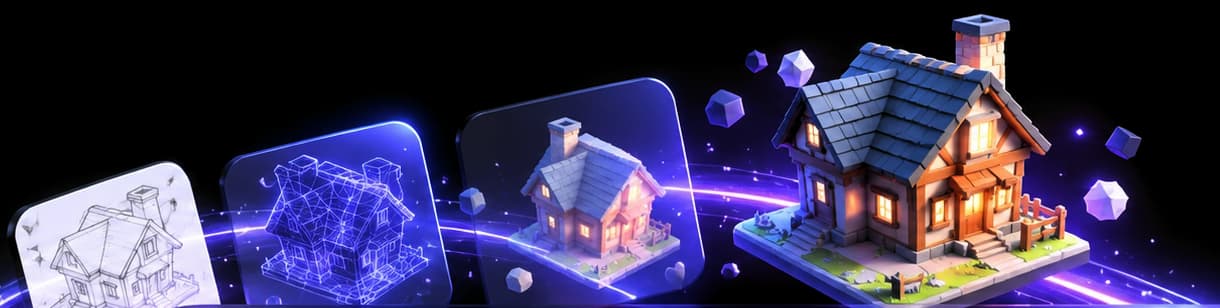
Claude can read a picture but can't output a mesh by itself. Attach the image in a chat with a 3D generation service connected through MCP, such as Vi3W, and Claude can send it for image-to-3D, then rig, animate, retexture or lighten the result. Without a connector, it can only describe or script simple geometry.
What Claude can and can't do with a picture
Claude has vision. Attach a picture and it can describe it, read the proportions, spot problems, and write a detailed prompt from it. What it can't do on its own is output the mesh. Turning pixels into geometry is a job for an image-to-3D model running on GPUs.
So there are two honest answers to "can Claude turn my image into 3D?":
- Without a 3D connector: no. Claude can describe the object, suggest a modelling plan, or write a Blender script that roughs out the basic shapes. That's a blockout, not a model of your picture.
- With a 3D connector: yes. Claude sends your image to the generation service, which returns a textured model, and Claude can keep working on it with you.
The same split applies to any chat assistant; there's a parallel guide for ChatGPT image to 3D.
Set up: connect a 3D service
Vi3W's MCP server adds image-to-3D, plus rigging, animation, retexturing and retopology, to Claude.
- Copy Vi3W's MCP server URL from the Vi3W app.
- In Claude, open Customize, Connectors, Add custom connector, name it Vi3W, paste the URL, and sign in.
- Enable Vi3W in the chat's + menu.
Full steps and troubleshooting: Vi3W MCP in Claude. Claude Code users add the same server to Claude Code's MCP configuration.
Step by step: a picture to a usable model
- Pick the right picture. One object, the whole object in frame, plain background, even light, front-on or three-quarter view. Product shots and clean concept art work best. A full guide: best photos for image to 3D.
- Ask Claude to check it first. "Before generating, look at this picture. Is it suitable for image to 3D? What would make it better?" Claude is good at spotting a cropped handle, a busy background or a strong shadow, and this costs nothing on the 3D side.
- Generate. "Turn this into a 3D model with Vi3W. Keep the proportions. Show me the result before doing anything else."
- Review the result. Look at it from the back and the sides, not only the front. The back is guessed, because the picture didn't show it.
- Fix or carry on. Depending on what you need:
- "Add bones to it" for a character, or "Add bones for an animal" for a creature.
- "Make it wave" or "Make it run".
- "Give it a new paint job: darker leather, brass buckles."
- "Run Clean shape at a smaller model size."
- Download GLB or FBX for engines and Blender, STL for printing, or convert to OBJ, PLY or glTF for free.

Getting better results from your image
Use Claude to turn a messy photo into a clean prompt
If your only picture is cluttered, ask Claude to describe the object in detail, then generate from that description as text, or use it to make a cleaner reference image first. Example:
"Describe the chair in this photo as a 3D artist would: shape, proportions, materials, wear, style. Leave out the background."
Give more than one view when you can
A single image leaves the back to guesswork. A matching side or back view helps the model get the depth right. See multi-view image to 3D.
Say what the model is for
"For a mobile game", "for a 3D print" or "for a product page" changes what you do afterwards: Clean shape for games, STL and a slicer check for printing, high-resolution textures for product shots.
Fix the texture without regenerating
If the shape is right but the colours are off, ask for a New paint job instead of a new generation. It keeps the shape and changes only the surface, from a text description or another picture.
Common problems and what causes them
- The back looks wrong. The picture didn't show it. Add a back or side view, or accept the guess and fix it in Blender.
- Thin parts are missing or blobby. Straps, antennae and chair legs are hard for image-to-3D. Pick a picture where they're clearly visible against the background.
- The background became part of the model. Use a plain background, or ask Claude to help you find a cleaner image.
- Flat, cardboard-like result. Usually a straight side view with no depth cues. A three-quarter view helps.
- Wrong scale. Generators don't know real sizes. Scale it in Blender, or tell Claude the size and let a Blender MCP server apply it.
There's a fuller diagnosis guide in why image to 3D looks wrong.
Image to 3D from Claude Code
For a folder of reference images, Claude Code is handy. With the Vi3W server in its MCP configuration, you can say: "For each PNG in ./refs, generate a 3D model with Vi3W, then save the GLB to ./models with the same file name. Ask me before each generation." Keep the confirmation step, since every generation costs XP, shown before it runs.
Which pictures to use, by job
- Game prop from concept art: a clean, front-on or three-quarter painting of the single prop. Ask Claude to crop or describe it if the sheet has several items on it.
- Character to rig: a full-body view in a T-pose or A-pose, arms clear of the body. Add bones works far better when limbs don't touch the torso.
- Product for a web page: a studio product photo on a plain background. Ask for a New paint job afterwards if the reflections baked into the photo look wrong.
- Figurine to print: a picture with chunky shapes and few thin parts. After generating, convert to STL and check it in your slicer.
What it can't do
Image to 3D reconstructs one object from what the picture shows. It won't build a whole room from a photo of a room, it can't know the hidden side for certain, and it doesn't produce CAD-accurate dimensions. It also won't recreate a copyrighted character for you to sell; ownership questions are covered in who owns a 3D model made through Claude or ChatGPT. Treat the result as a strong first version that you check and, where needed, fix.
Try it
Connect Vi3W to Claude using the Claude setup guide, or upload your picture in the Vi3W app to see the result first.
Frequently asked questions
claude image to 3d model
Connect a 3D generation service such as Vi3W as a custom connector, attach your image, and ask Claude to turn it into a 3D model. The service makes the mesh and textures; Claude handles the request and the follow-up steps.
claude code image to 3d
Claude Code can use the same remote MCP server from the terminal. Add the server to Claude Code's MCP configuration, point it at an image file in your project, and save the returned model next to it.
claude 3d model from image
The picture matters most: one object, front-on or three-quarter view, plain background, even light, nothing cropped. Claude can also help by checking your image and suggesting a better one before you spend a generation.
Last reviewed