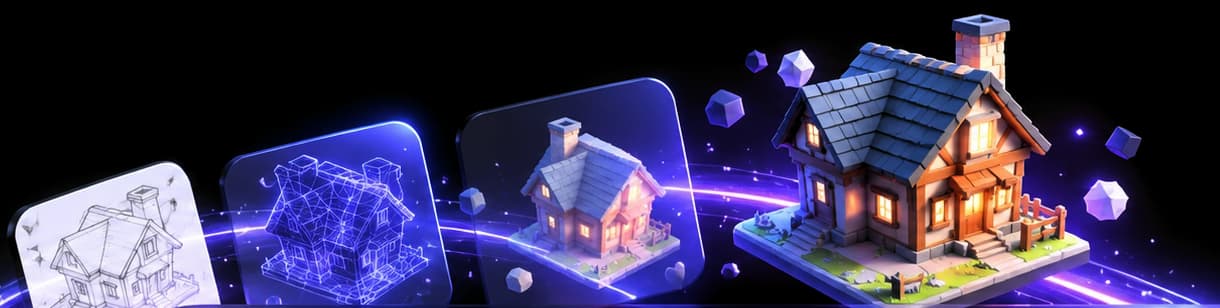
Integrations
Vi3W with Blender, Unity, Unreal Engine, Godot and Three.js
How Vi3W models get into the tools you already use. Every integration is export-based today: Vi3W writes standard files that each tool imports.
- Standard file formats
- Game-ready topology
- Materials & textures
- Works across major tools
Supported tools
Export from Vi3W and import into any of these popular 3D tools.
- BlenderOpen-source 3D suite for modelling, sculpting, rendering and animation..glb.fbx.obj
- UnityReal-time engine for games, AR/VR and interactive experiences..fbx.glb
- Unreal EngineHigh-fidelity real-time 3D for games, film and virtual production..glb.fbx
- GodotOpen-source engine for 2D and 3D games, with first-class glTF..glb.gltf
- Three.jsJavaScript 3D library for the web, loading GLB with GLTFLoader..glb.gltf
How it works
Generate, export and import your 3D model in a few simple steps.
- 1
Generate
Create a 3D model from text, an image or a sketch in Vi3W.
- 2
Export
Download GLB, FBX or OBJ, with textures included.
- 3
Import
Open it in your tool and check materials and scale.
- 4
Use in your project
Build it into your game, app, scene or render.
Tool-specific guides
Follow the guide for your tool for step-by-step instructions.
Blender integration
Export the model from Vi3W as GLB, then use File → Import → glTF 2.0 in Blender.
- 1Export from Vi3W as GLBOne file carries the mesh, UVs and every texture, so nothing can go missing on the way.
- 2Import into BlenderFile → Import → glTF 2.0 (.glb/.gltf). The glTF importer ships with Blender and is enabled by default.
- 3Switch the viewport to Material PreviewSolid mode does not show the image textures unless its colour option is set to Texture, which makes a correctly imported model look untextured.
- 4Check scale and orientationglTF stores metres and +Y up; the importer converts both to Blender's metres and +Z up, so the model should arrive at real-world size. Apply transforms (Ctrl+A → All Transforms) before you start editing.
- 5Edit as usualThe mesh has already been through retopology, so loop tools, UV editing and modifiers behave as they would on a hand-built asset.
File formats
Formats that work with Blender, in order of preference.
- GLBGLB / glTF 2.0recommended
- FBXFBX
- OBJOBJ
Example: Load in Blender (Python)
You can also import from a script.
# Import a GLB file in Blender
import bpy

bpy.ops.import_scene.gltf(filepath="/path/to/your-model.glb")
# The model is added to the current scene
Unity integration
Export the model from Vi3W as FBX and drag it into your Unity project's Assets folder; Unity imports FBX natively.
- 1Export from Vi3W as FBXUnity reads it with no extra packages. If you prefer GLB, install Unity's glTFast package first.
- 2Drag the file into the Assets folderUnity imports it as a model asset you can place in a scene.
- 3Check the Model tabof the import settings. Convert Units turns the file's units into Unity's one-unit-per-metre scale. Bake Axis Conversion writes the Z-up to Y-up conversion into the mesh itself, which avoids the classic −90° X rotation on child objects.
- 4Open the Materials taband use Extract Textures, then Extract Materials, so you can edit them as normal project assets.
- 5Connect the PBR mapsFBX reliably carries base colour and normal maps. Roughness and metallic need assigning by hand: the Built-in and URP Lit shaders use a metallic map with smoothness in its alpha, and HDRP packs metallic, ambient occlusion, detail mask and smoothness into one mask map. Smoothness is roughness inverted. See PBR materials.
File formats
Formats that work with Unity, in order of preference.
- FBXFBXnative import
- GLBGLB / glTF 2.0via the glTFast package
- OBJOBJ
Example: Load at runtime (C#, glTFast)
You can also import from a script.
using GLTFast;
using UnityEngine;

public class LoadModel : MonoBehaviour
{
    async void Start()
    {
        var gltf = new GltfImport();
        if (await gltf.Load("file:///path/to/your-model.glb"))
            await gltf.InstantiateMainSceneAsync(transform);
    }
}
Unreal Engine 5 integration
Export the model from Vi3W as GLB or FBX and drag it into the Unreal Content Browser; Unreal Engine 5 imports both natively.
- 1Export from Vi3W as GLBIt keeps the mesh and PBR textures in one file. FBX works the same way if your pipeline standardises on it.
- 2Drag the file into the Content Browser, or use Import. Unreal shows its import options first.
- 3Choose the static-mesh optionsFor dense, detailed props in an Unreal Engine 5 project, enable Nanite so the engine handles level of detail automatically. For lighter assets, standard LODs are fine. See level of detail.
- 4Check scaleUnreal measures in centimetres, while glTF stores metres, so compare the imported asset against a known object, such as the default mannequin or a 1 m cube. A model that arrives 100 times too small or large has a unit mismatch. Fix it at the source, or with the Import Uniform Scale option.
- 5Check the materialOpen the generated material and confirm the base colour, normal and roughness textures are connected. Normal maps should follow Unreal's DirectX convention. See PBR materials.
File formats
Formats that work with Unreal Engine 5, in order of preference.
- GLBGLB / glTF 2.0native import
- FBXFBXnative import
- OBJOBJ
Example: Batch import (Python)
You can also import from a script.
import unreal

task = unreal.AssetImportTask()
task.filename = "C:/path/to/your-model.glb"
task.destination_path = "/Game/Vi3W"
task.automated = True
task.save = True

unreal.AssetToolsHelpers.get_asset_tools().import_asset_tasks([task])
Godot integration
Export the model from Vi3W as GLB and copy it into your Godot project folder.
- 1Export from Vi3W as GLBGodot's documentation recommends glTF 2.0 over every other format, and GLB keeps textures inside the file.
- 2Copy the file into the project folderGodot detects it and imports it, compressing textures for the GPU. Large textures make this step slow, which is normal.
- 3Instance itDrag the .glb from the FileSystem dock into a 3D scene. It arrives as an inherited scene containing a MeshInstance3D.
- 4Adjust import settingsin the Import dock, or double-click the file for Advanced Import Settings. That is where you extract materials to editable files, generate collision shapes, and tune the automatically generated LODs.
- 5Check which way it facesglTF models face +Z, while Godot treats −Z as forward. If a character walks backwards, rotate a parent node 180°, or pass true as the third argument of look_at to use the model's front.
File formats
Formats that work with Godot, in order of preference.
- GLBGLB / glTF 2.0recommended by Godot
- FBXFBX (ufbx importer
- GODOTGodot 4.3+)
- OBJOBJmesh only
Example: Instance the model (GDScript)
You can also import from a script.
extends Node3D

func _ready() -> void:
    var model: PackedScene = load("res://models/your-model.glb")
    add_child(model.instantiate())
Three.js integration
Export the model from Vi3W as GLB and load it with Three.js's GLTFLoader, then add the loaded scene to your own.
- 1Export from Vi3W as GLBglTF is the web's native 3D format, and GLB loads in one request.
- 2Load itwith GLTFLoader from three/addons/loaders/GLTFLoader.js, and add gltf.scene to your scene in the load callback.
- 3Light itThe model uses MeshStandardMaterial, which reflects its surroundings. Without lights or an environment map it renders dark or black. A quick fix is RoomEnvironment passed through a PMREMGenerator into scene.environment.
- 4Optimise before shippingResize textures to 2K or less, then compress them, for example with glTF Transform (KTX2 or WebP textures, Draco or meshopt geometry). Add the matching decoders to your loader.
- 5Frame the modelCompute its bounding box and fit the camera, so models of any size appear correctly.
File formats
Formats that work with Three.js, in order of preference.
- GLBGLB / glTF 2.0 (GLTFLoader
- RECOMMENDED)recommended)
- FBXFBXFBXLoader
- OBJOBJOBJLoader
Example: Load with GLTFLoader (JavaScript)
You can also import from a script.
import * as THREE from "three";
import { GLTFLoader } from "three/addons/loaders/GLTFLoader.js";

const loader = new GLTFLoader();
loader.load("/models/your-model.glb", (gltf) => {
  scene.add(gltf.scene);
});
More integration guides
Detailed instructions for each tool, with honest notes on what does not carry across.
- BlenderExport the model from Vi3W as GLB, then use File → Import → glTF 2.0 in Blender.View guide
- UnityExport the model from Vi3W as FBX and drag it into your Unity project's Assets folder; Unity imports FBX natively.View guide
- Unreal Engine 5Export the model from Vi3W as GLB or FBX and drag it into the Unreal Content Browser; Unreal Engine 5 imports both natively.View guide
- GodotExport the model from Vi3W as GLB and copy it into your Godot project folder.View guide
- Three.jsExport the model from Vi3W as GLB and load it with Three.js's GLTFLoader, then add the loaded scene to your own.View guide
Common issues
Quick fixes for common integration problems.
The model appears with missing textures
Export GLB, which embeds every texture in one file. In Blender, switch the viewport to Material Preview — Solid mode hides image textures. With FBX, keep the texture files next to the model when you move it.
The scale looks too small or too large
glTF stores real-world metres and importers convert to their own units, so models should arrive at real size. Check scale on first import, then apply transforms (in Blender, Ctrl+A → All Transforms) before editing.
Materials look different in my tool
Engines interpret PBR materials slightly differently, and OBJ cannot carry metallic or roughness maps at all. Use GLB for the most faithful materials, then adjust lighting and exposure in the target tool.
Which format should I import?
GLB for Blender, Godot, Unreal Engine and Three.js. FBX for Unity, which imports it natively — or GLB through the glTFast package.
Need more help?
Join the community or read the guides.

Quick answer
Which tools does Vi3W work with?
Vi3W exports standard GLB, glTF, FBX and OBJ files, so its models open in Blender, Unity, Unreal Engine 5, Godot and Three.js without plugins. Each guide below shows the import path, the settings that matter for scale, axes and materials, and what does not carry across. There are no native add-ons today.
How the integrations work
Vi3W does not install anything into your tools. It exports files in the formats every major 3D tool already reads, and each guide explains the cleanest path in: Blender for editing, Unity, Unreal Engine and Godot for games, and Three.js for the web. If you are unsure which file to export, start with glTF vs FBX.