Guides
How to generate a batch of game props from one Claude or ChatGPT chat
Plan, generate and export a consistent set of 3D game props from Claude or ChatGPT with a connected 3D service: style sheet, list, prompts and naming.
 Aman Porwal on LinkedIn (opens in a new tab)Founder @ Vi3W
6 min read

Quick answer
Can I make a whole set of 3D props from one chat?
Yes. Agree a short style sheet and a prop list with the assistant first, then have it generate each item through a connected 3D service, one at a time, checking each result. Retexture any prop that drifts off-style, lighten the meshes, and export with consistent names so the set imports cleanly into your engine.
Why a chat suits batch work
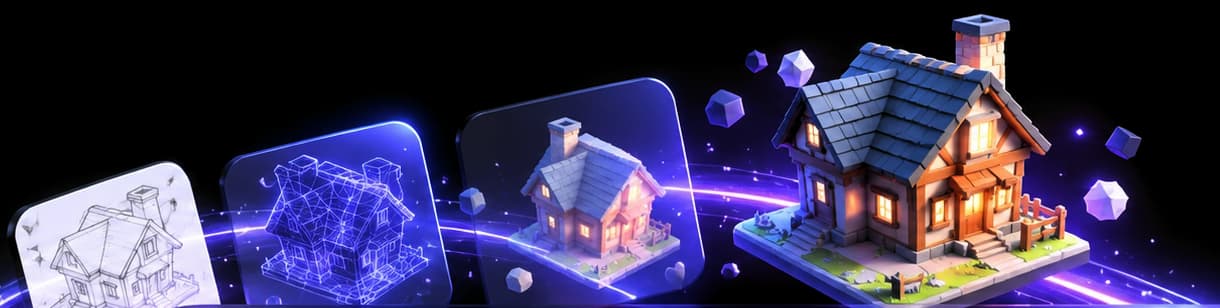
Making one prop with AI is easy. Making twenty that look like they belong in the same game is the hard part. A chat assistant helps here in ways a plain generator doesn't: it remembers the style you agreed, keeps the list, names files consistently, and reminds you which props are done. With a 3D service connected through MCP, it can also do the generating.
This guide uses Claude or ChatGPT with Vi3W connected (Claude setup, ChatGPT setup). The planning half works with any assistant, even without a connector.
Step 1: write a style sheet with the assistant
Before generating anything, agree how the set should look. Ask:
"I'm making props for a cosy fantasy village in a mobile game. Help me write a short style sheet I can reuse for every prop: style, shape language, palette, materials, wear level, detail level and target size range. Keep it under 120 words."
A good style sheet sounds like: "Stylised, hand-painted. Chunky, rounded shapes, slightly exaggerated proportions. Warm palette: honey wood, mossy greens, terracotta. Light wear, no grime. Readable silhouettes from a top-down camera. Props between 30 cm and 2.5 m." Save it; you'll paste it into every request. A longer version for teams is in AI 3D asset style guides.
Step 2: build the prop list
Ask the assistant to propose a list, then edit it yourself:
"Based on that style sheet, list 15 props a village market needs. For each give a name, a one-line description and a real-world size. Mark the three most important as hero props."
Cut anything that's really a scene (a "market square") or a pile of things (a "cart full of vegetables"). Generators make single objects. Split piles into parts: a cart, a crate, a cabbage.
Then fix the names now, before any files exist. Something like SM_Market_Crate_01, SM_Market_Cart_01. Naming rules are in AI 3D asset naming conventions.
Step 3: set the rules for the session
Paste this before the first generation:
"Rules: generate one prop at a time with Vi3W, using the style sheet in every prompt. Before each paid tool, tell me what you'll run and wait for my OK. Show each result before moving on. Keep a running checklist of the props with status: done, redo or skipped."
The confirmation rule matters for a batch. Fifteen props with one retry each is thirty generations, and each one costs XP shown before it runs. Keeping your OK in the loop means nothing runs that you didn't choose. More on costs: do MCP tool calls use credits or tokens.
Step 4: generate one at a time
Work down the list. For each prop:
- The assistant writes the prompt (style sheet plus the prop's line) and shows it.
- You approve, or edit a word or two.
- It generates and shows the result.
- You mark it done or redo, with one specific note.
Start with the three hero props. They set the bar; once they look right, the rest have something to match.
Example of a single request in the batch:
"Next: SM_Market_Crate_01. Wooden crate, slatted sides, rope handles, about 60 cm. Use the style sheet. Show me the prompt first."

Step 5: pull drifting props back into style
Even with the same style sheet, some props come out a bit off: too realistic, wrong palette, too shiny. Before regenerating, try the cheaper fix:
- Colours or materials off: "Give SM_Market_Crate_01 a new paint job matching the style sheet: honey wood, hand-painted, light wear." New paint job keeps the shape and replaces only the textures.
- Use a finished prop as the reference: retexture from a picture of a hero prop you're happy with, so the rest match it.
- Shape off: regenerate with one change: "same crate, wider and lower".
Step 6: lighten and export
Mobile and web games need light meshes. For each prop that's done:
"Run Clean shape on SM_Market_Crate_01 at a smaller model size, then give me the FBX."
Clean shape rebuilds the mesh at a face count you choose, from 500 to 20,000, and bakes the textures onto it. Small props can go low; hero props can keep more. Download GLB or FBX, or convert to OBJ, STL, PLY or glTF for free.
Keep the file names from your list. If you're using Blender MCP too, the assistant can import the whole set into one scene, apply scale, lay them out on a grid for review, and export them in one go. That handoff is covered in chaining MCP servers into a 3D pipeline.
Step 7: review the set together
Look at all the props side by side, in the engine or in Blender, under your game's camera and lighting. This is where you catch the barrel that's twice as tall as the door or the one crate that's more saturated than the rest. Fix those with a retexture or a scale change, not a full regeneration.
A realistic batch: what to expect
Out of fifteen props, expect most to work on the first or second try, a few to need a retexture to match, and one or two that the generator just doesn't get, usually thin or complicated items like a lantern on a hook or a fishing net. For those, simplify the prop, try a different 3D model in Vi3W, or make it by hand. Background props and set dressing are where batch generation pays off most; AI 3D props for indie games has more on which props suit AI.
What batch generation can't do
It can't lay out your level, guarantee identical style across every prop, or hit a precise polygon count on the first try. It won't make modular pieces that snap together on a grid; for walls and floor tiles, a Blender script is more reliable. And it won't make a whole scene in one go. Plan for review time: generating is quick, and looking at each result properly is the part that makes the set feel designed.
Start your set
Write the style sheet and list today, even without a connector. Then connect Vi3W to Claude or ChatGPT, or work through the list in the Vi3W app.
Frequently asked questions
ai 3d models for games
AI 3D models work well for props, set dressing and background assets in games. Plan a style, generate in batches, keep polygon counts to your budget, and keep hero assets for hand finishing.
ai 3d model for roblox
Generate the prop, lighten it with Clean shape so it stays inside Roblox's mesh limits, export FBX or OBJ, and import it as a MeshPart. Keep a consistent scale across the set before importing.
ai 3d model generator best
There's no single best model for every prop. Stylised props, realistic props and characters each suit different generators. Vi3W runs 25 image-to-3D models, so you can try several on the same prop and keep the one that fits your set.
Last reviewed